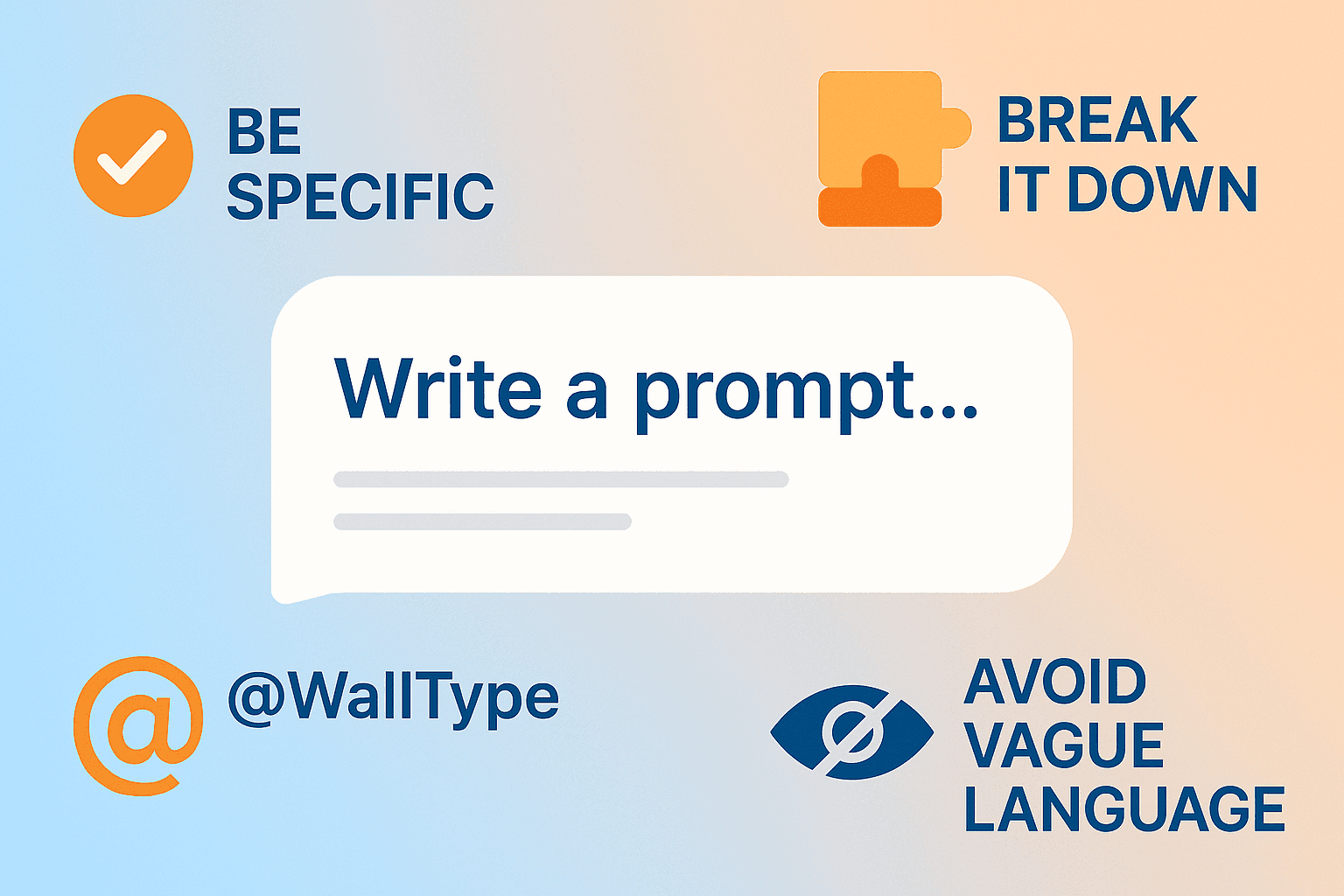

The Importance of Detail
Clear and detailed prompts are crucial for generating high-quality outputs. BIMLOGIQ Copilot requires more specificity compared to general tools like ChatGPT. As a rule of thumb, craft your prompts as if you’re explaining the task to a software engineer who will code it for you.
Prompt Length and Language
While there’s no strict rule about prompt length, concise and clear instructions tend to work best. BIMLOGIQ Copilot supports multiple languages, so feel free to use the language you’re most comfortable with.
Use @ for Enhanced Precision
BIMLOGIQ Copilot doesn’t have direct access to your model's content—it generates code based solely on your descriptions. Use @ to reference parameters, families, or specific elements in your model. This approach enhances the accuracy and relevance of the generated code.
Break Down Complex Prompts
BIMLOGIQ Copilot excels at generating shorter code snippets. For complex tasks, divide your prompt into smaller, logical steps and tackle each one sequentially to achieve your goal efficiently.
Avoid Visual References
Since BIMLOGIQ Copilot doesn’t visualize your model, avoid vague descriptions like "the element in the top-left corner." Instead, specify the element using its ID, type, or other unique properties. Alternatively, select the element in your model and indicate that it’s the one Copilot should work with.
Specify Items in Linked Files
Clearly indicate whether an element is part of a linked file or the main file. Provide details on how linked elements relate to items in the primary model to help Copilot generate accurate code.
By following these guidelines, you’ll optimize the performance of BIMLOGIQ Copilot and unlock its full potential for automating tasks in Revit.
Good prompts, bad prompts
Bad Prompt
Create Room Schedules for rooms with an area greater than 10 square meters.
Good Prompt
Create a room schedule, add the 'Area' parameter to the schedule, and filter it to show rooms with an 'Area' greater than 10 square meters.
Bad Prompt
Add the 'Volume' parameter to 'Columns' and override it with the previous value.Good Prompt
Create a new parameter named 'New Volume' for the 'Columns' category. Then, read the value of the 'Volume' parameter and write it to the newly created parameter for each column in this project.
Bad Prompt
Duplicate all views under 'Floor Plan' and place them under 'Architectural Plan'.Good Prompt
Duplicate all views of type 'Floor Plan' and change their type to 'Architectural Plan'.
Bad Prompt
Change the title block on each sheet to 'A3'.Good Prompt
Change the type of title blocks on each sheet to 'A3'.
Bad Prompt
Change the material of the selected wall from 'Brick' to 'Concrete'.Good Prompt
Change the material of the 'Core' layer of the selected wall to 'Concrete' if its current material name is 'Brick'.
Bad Prompt
In the current view turn on 'Furniture' category.Good Prompt
In the current view, set the visibility of the 'Furniture' category to visible in the Visibility/Graphic settings.
Bad Prompt
In the current view, set the color of pipes with a length greater than 4 meters to red.Good Prompt
Create a view filter to color pipes with a length greater than 4 meters in red, and apply the filter to the current plan view.
Bad Prompt
Set all levels to 'Non-Structural'.Good Prompt
For all levels in this project, uncheck the 'Structural' parameter.
Bad Prompt
Import the Excel file named 'walls.xlsx' from the desktop and update the 'Comments' parameter.Good Prompt
Import the Excel file named 'walls.xlsx' from the desktop and update the 'Comments' parameter of elements. The first column of the Excel file contains the Element ID of each element, and the second column contains the 'Comments' value for each element.
